Setting up your Slack
Last updated: June 23, 2026
How to Integrate Slack with Boon
Learn how to connect your Slack workspace to GoBoon to receive automated notifications. This guide walks you through the authorization process and configuring your channel preferences for regular status updates.
Step 1. First, create the channel you wish to receive Slack notifications in for referrals. Channel should be public to automatically add the Boon app as a member. If it is private you will need to add the app to the channel as a member. (See step 8 for details)
Step 2. Navigate to https://admin.goboon.co and select settings
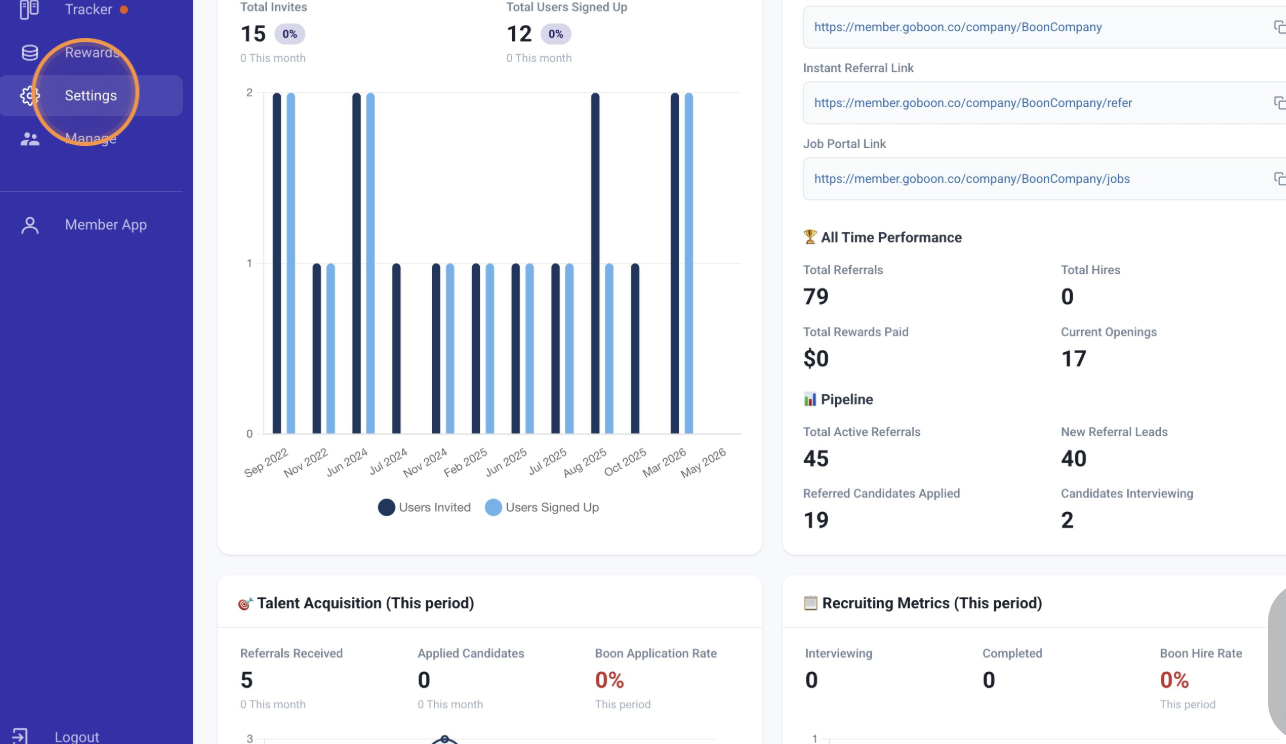
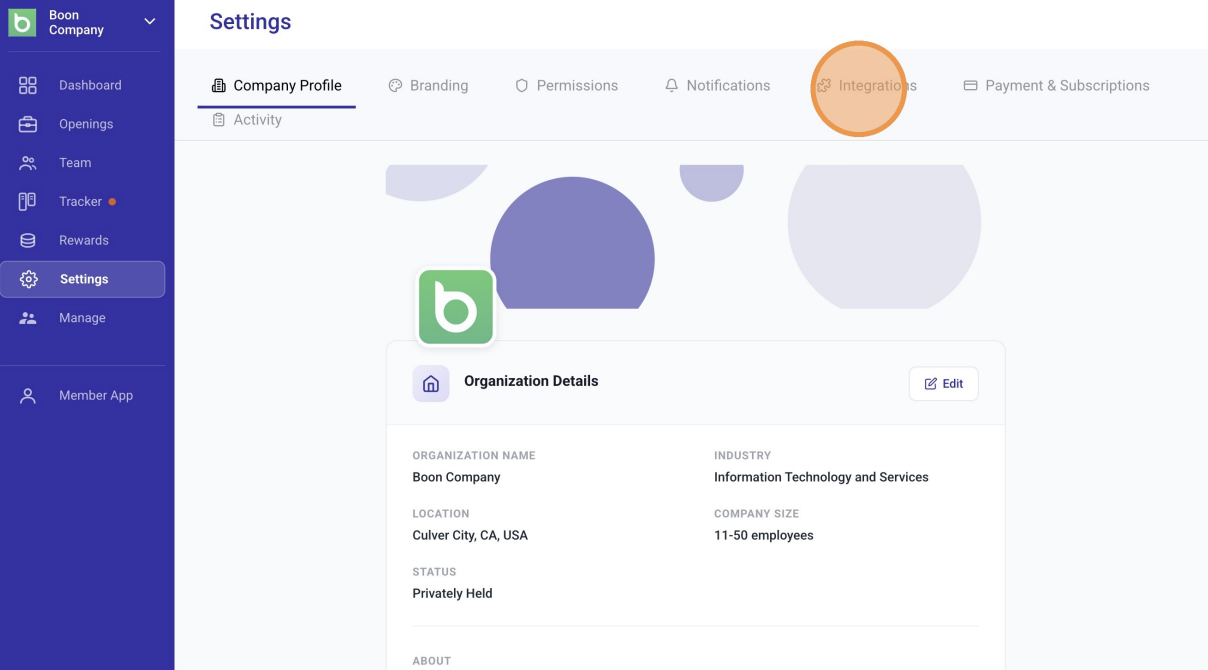
Step 3. Select "Integrations"
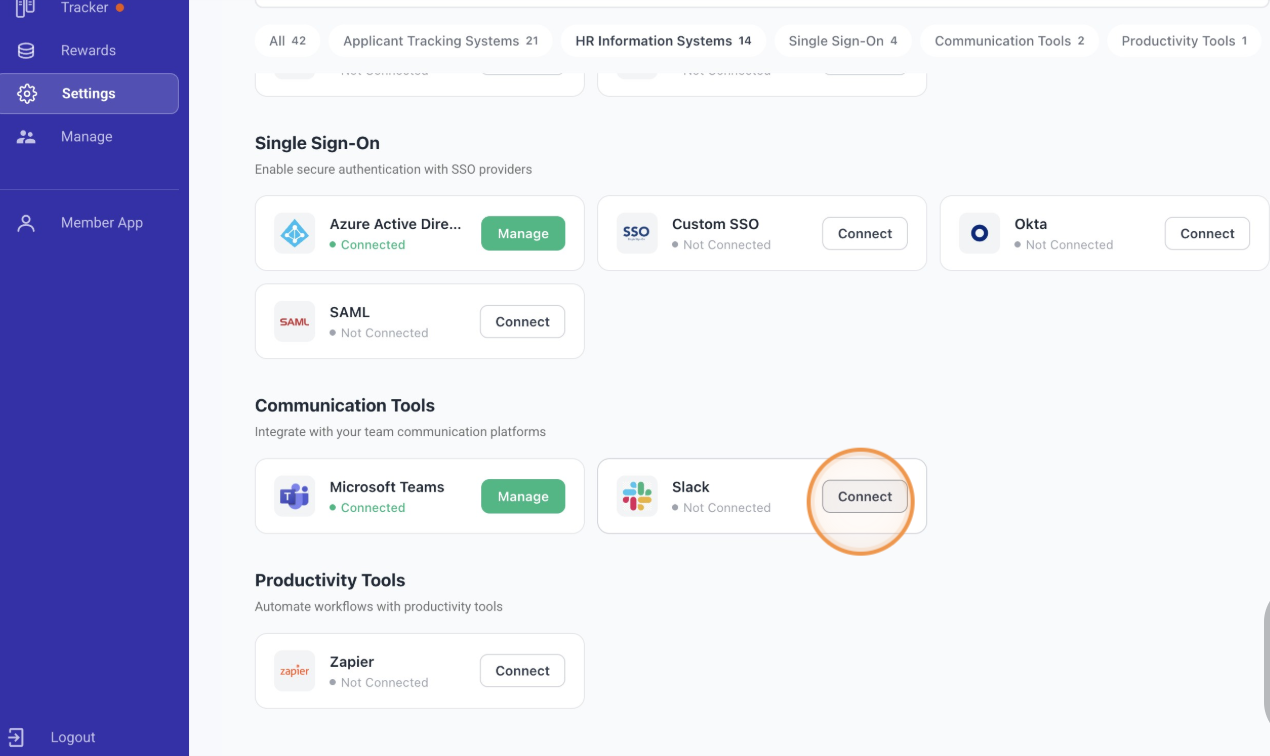
Step 4. Navigate to Slack and Select "Connect"
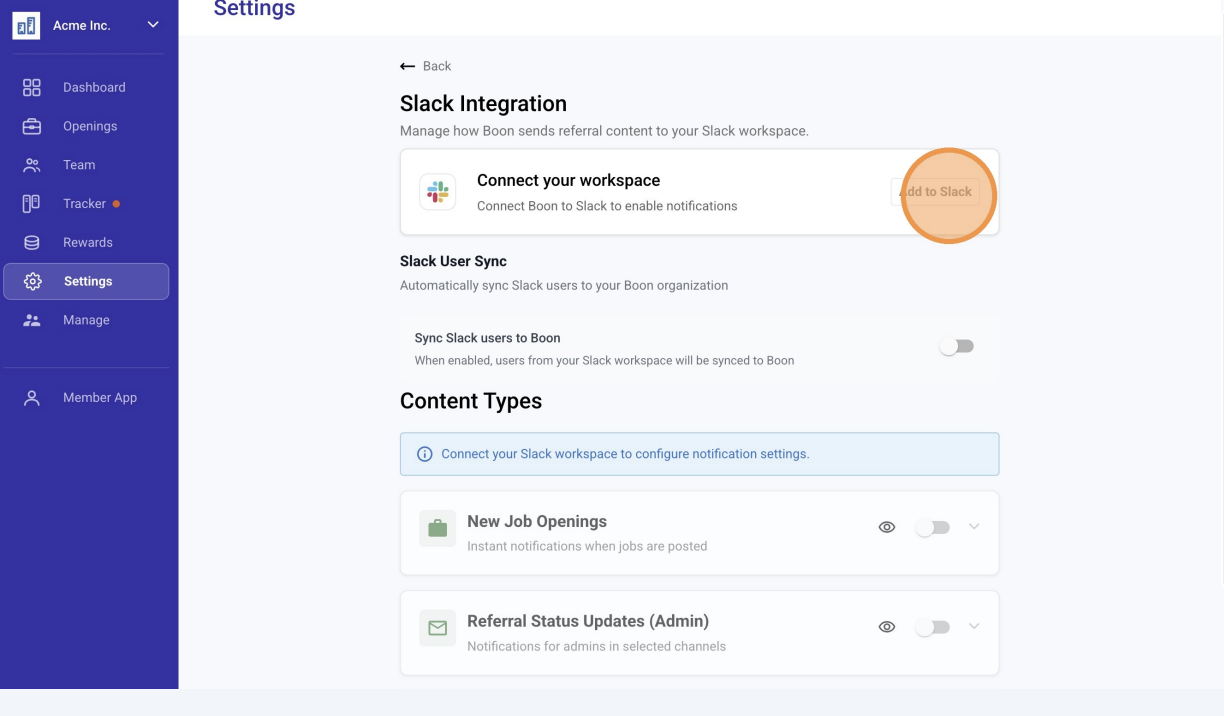
Step 5. Select "Add to Slack"
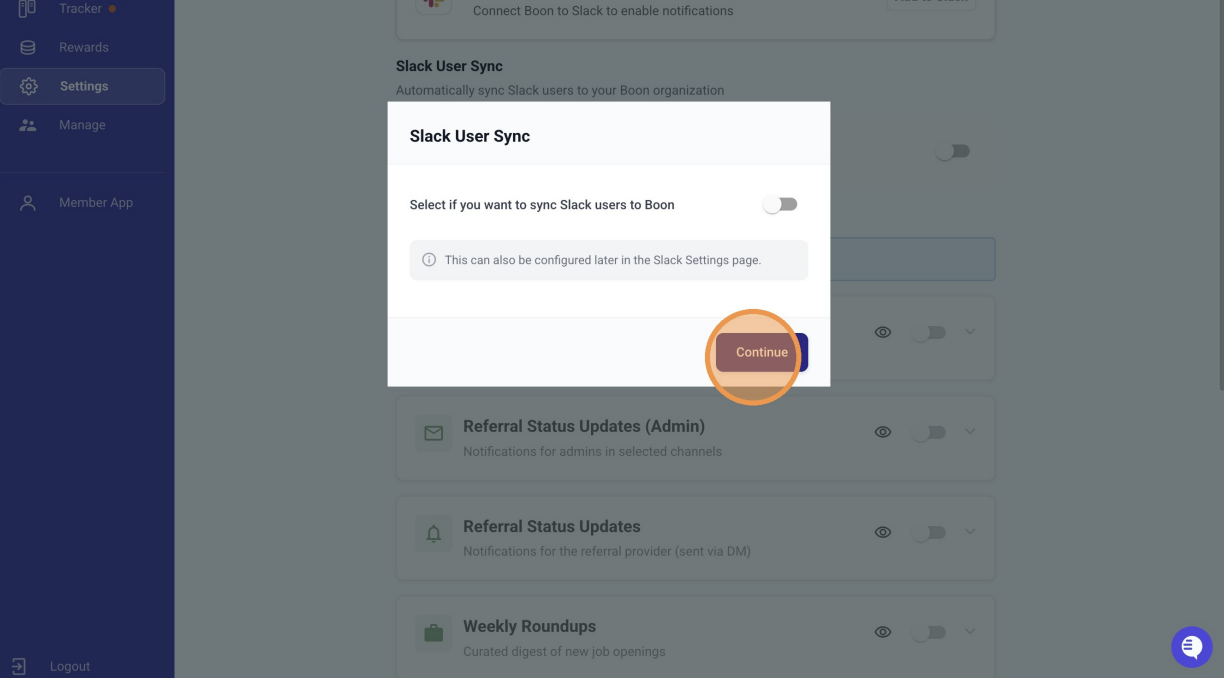
Step 6. You can sync all Slack users to the Boon app here to automatically give them access. If you do this it will import your Slack users directly into Boon as team members.
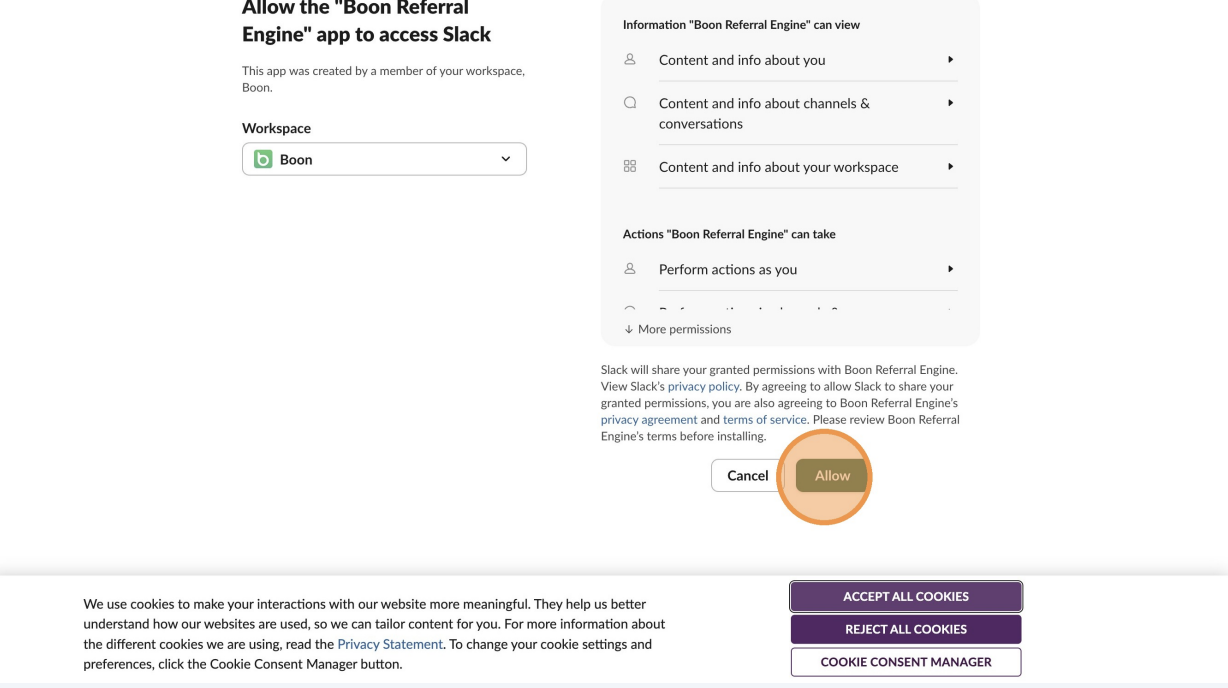
Step 7. You will be directed to Slack to grant Boon app access. Click allow.
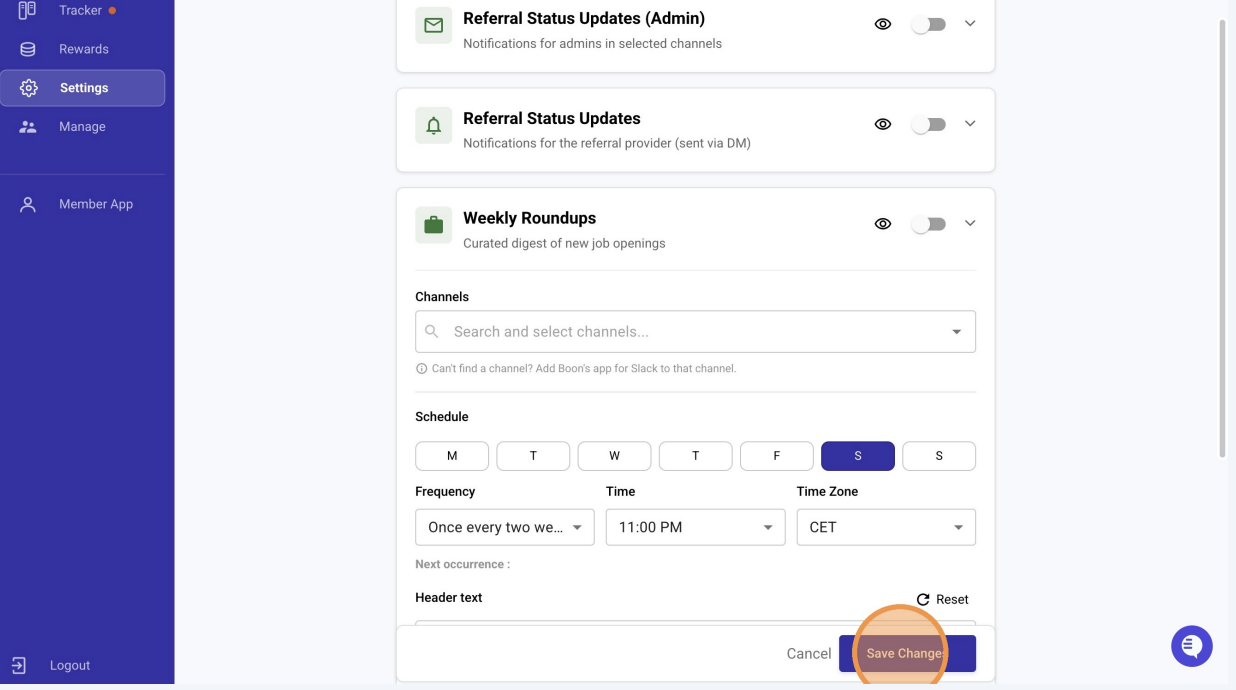
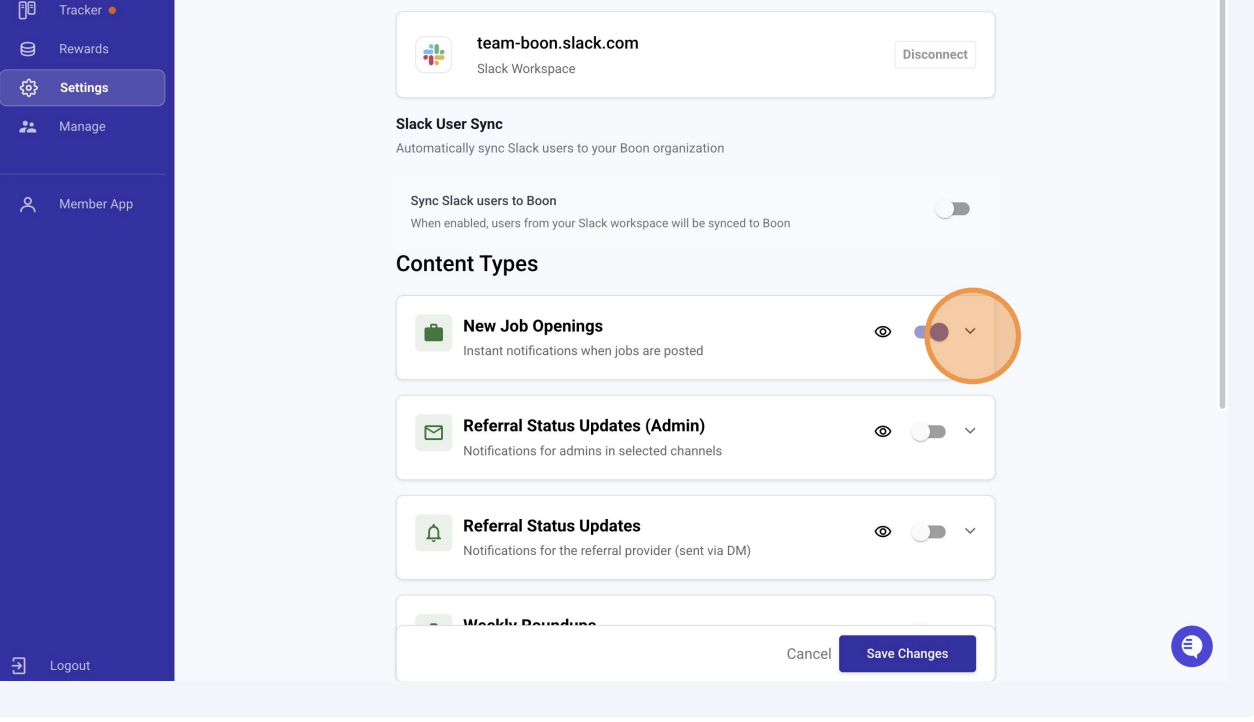
Step 8. Once you are connected you can choose the channel and settings for each notification by toggling on the setting.
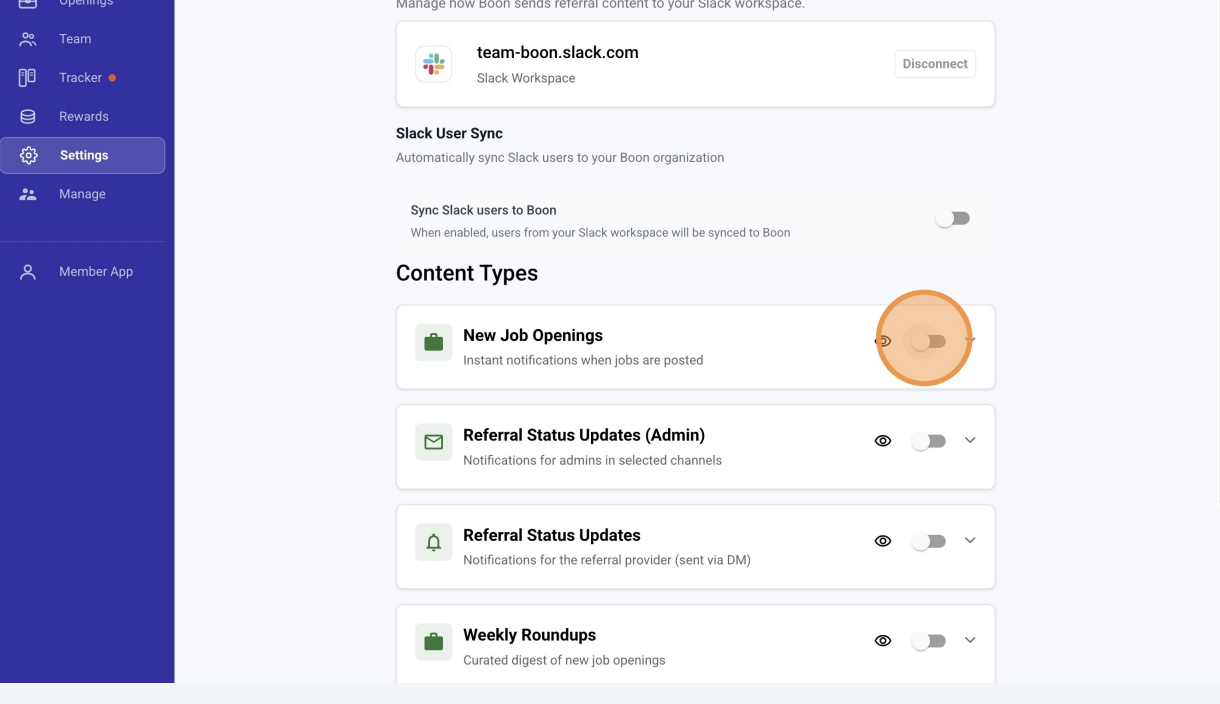
Select the drop-down arrow to see all options
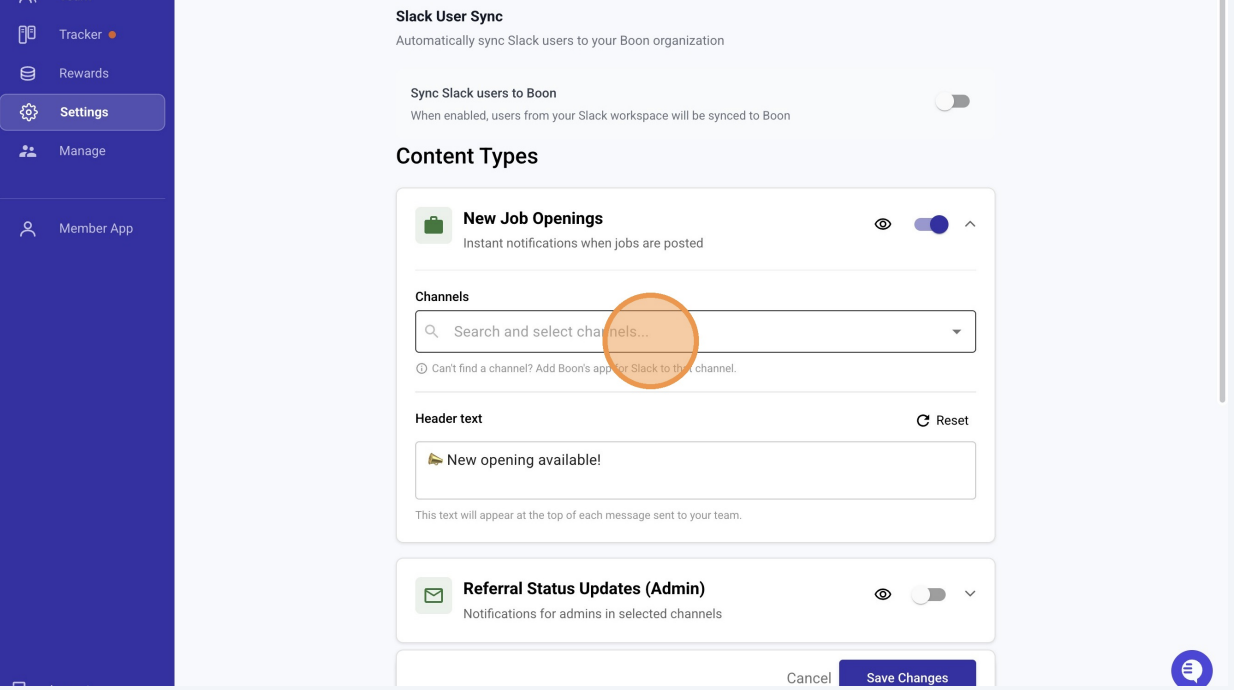
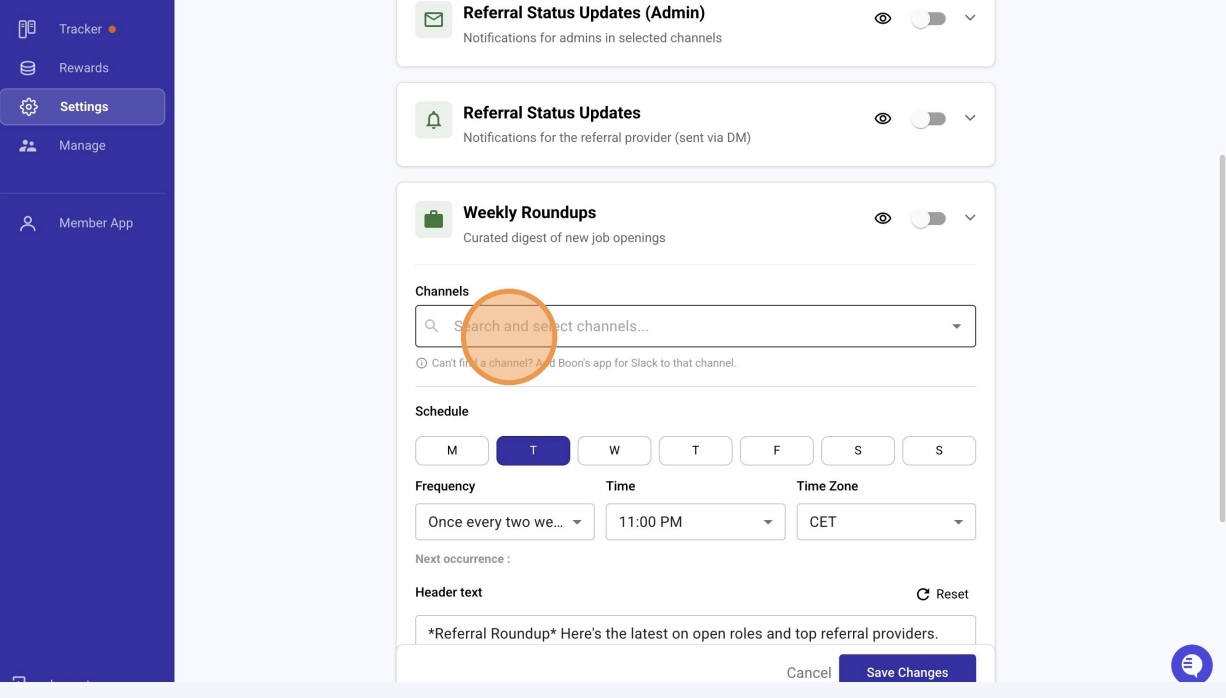
Search for your chosen channel here from the options. If you do not see the correct channel this may be due to it being private in this case you will need to go to Slack and add the app directly as a member.
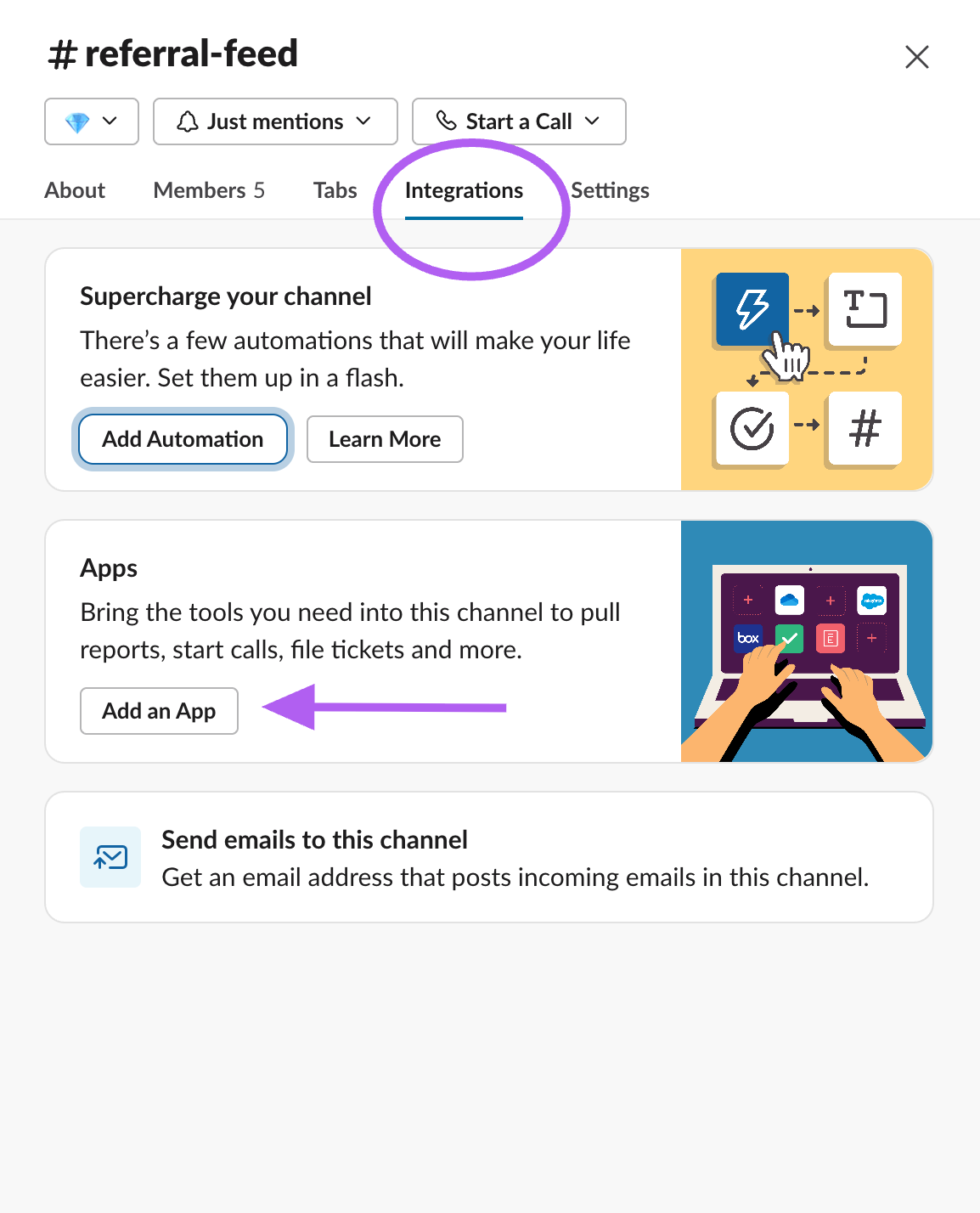
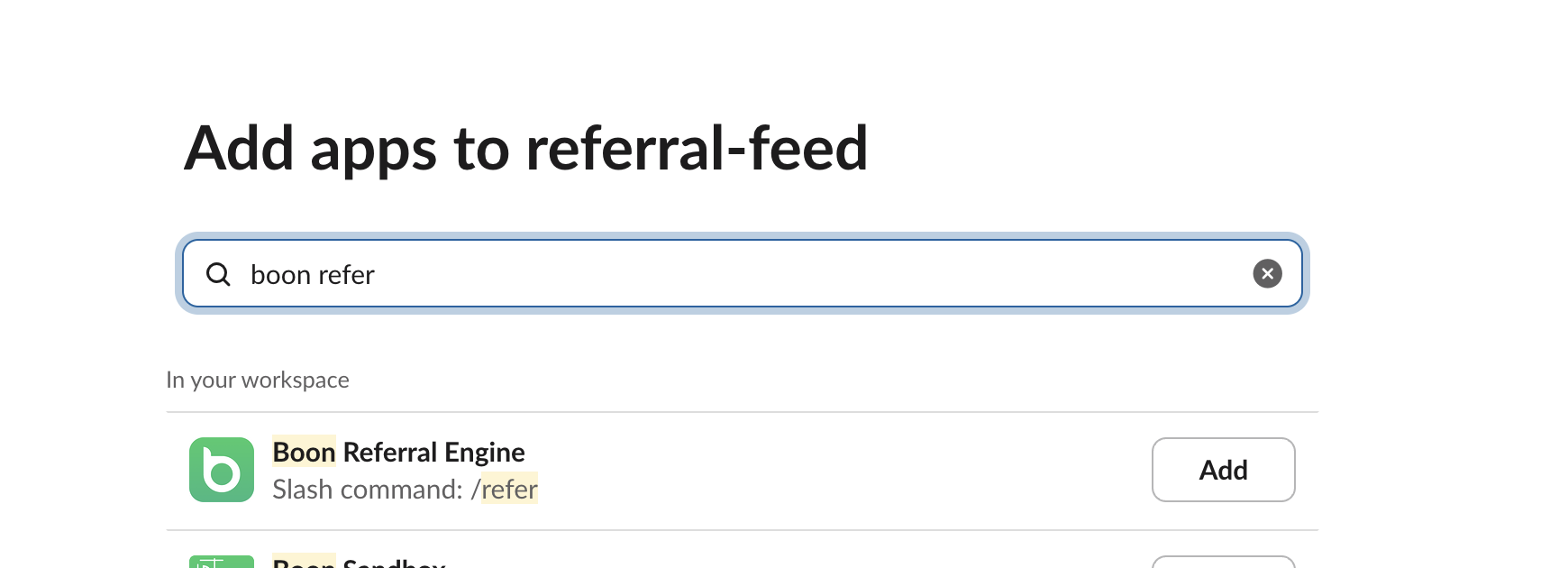
Go directly to Slack channel, Add members>> Integrations>> Add app>> select Boon Referral Engine
Step 9. Walk though each chosen settings to ensure all options are in place. Select the appropriate channels, set the cadence of notifications, and adjust the messaging to reflect your voice.
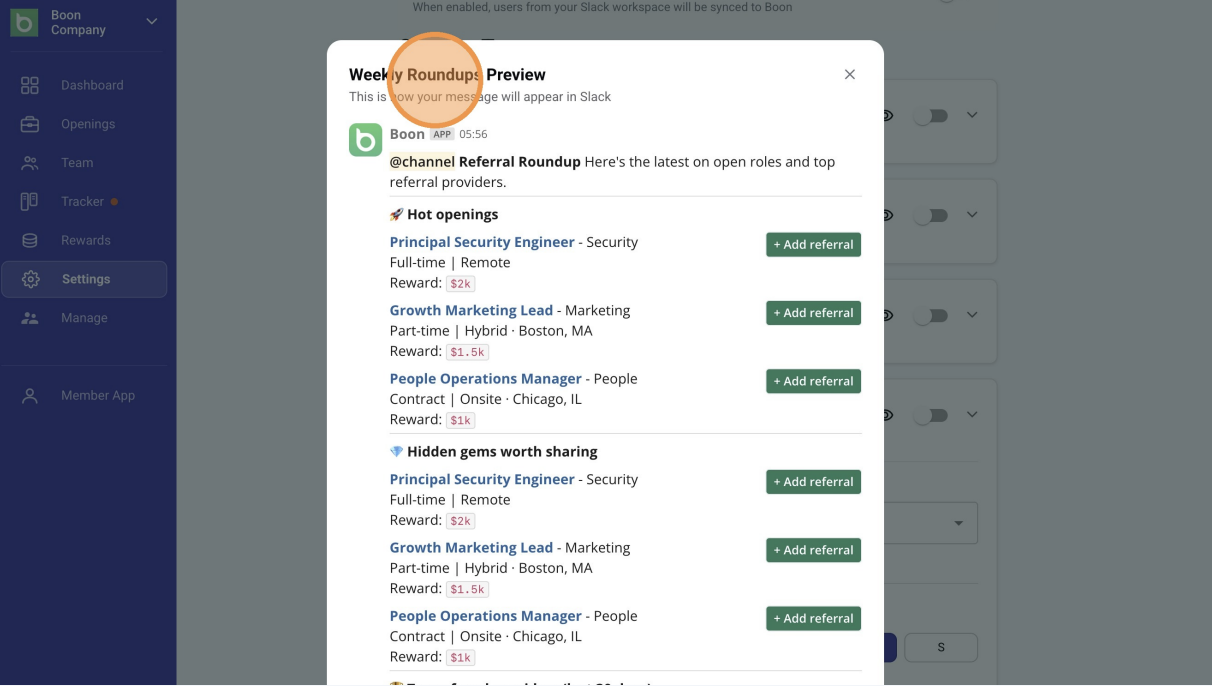
Click here to preview the notifications
Step 10. Select "Save Changes" to ensure all settings are in place