Greenhouse Integration with Boon
Last updated: September 1, 2026
Overview
To authenticate Greenhouse, you need to reach out to Boon's customer success to provide you with a unique link to authenticate with Greenhouse
This guide will walk you through the setup process.
Instructions
Upon request, Boon's customer success will reach out with a unique link to be used to setup Boon with Greenhouse.
Once you receive your unique link follow the next steps:
Step 1: Open the provided link
Make sure to run those setups using an Admin account.
Select: Use my credentials (API Key usage is deprecated since the 31st of August 2026)
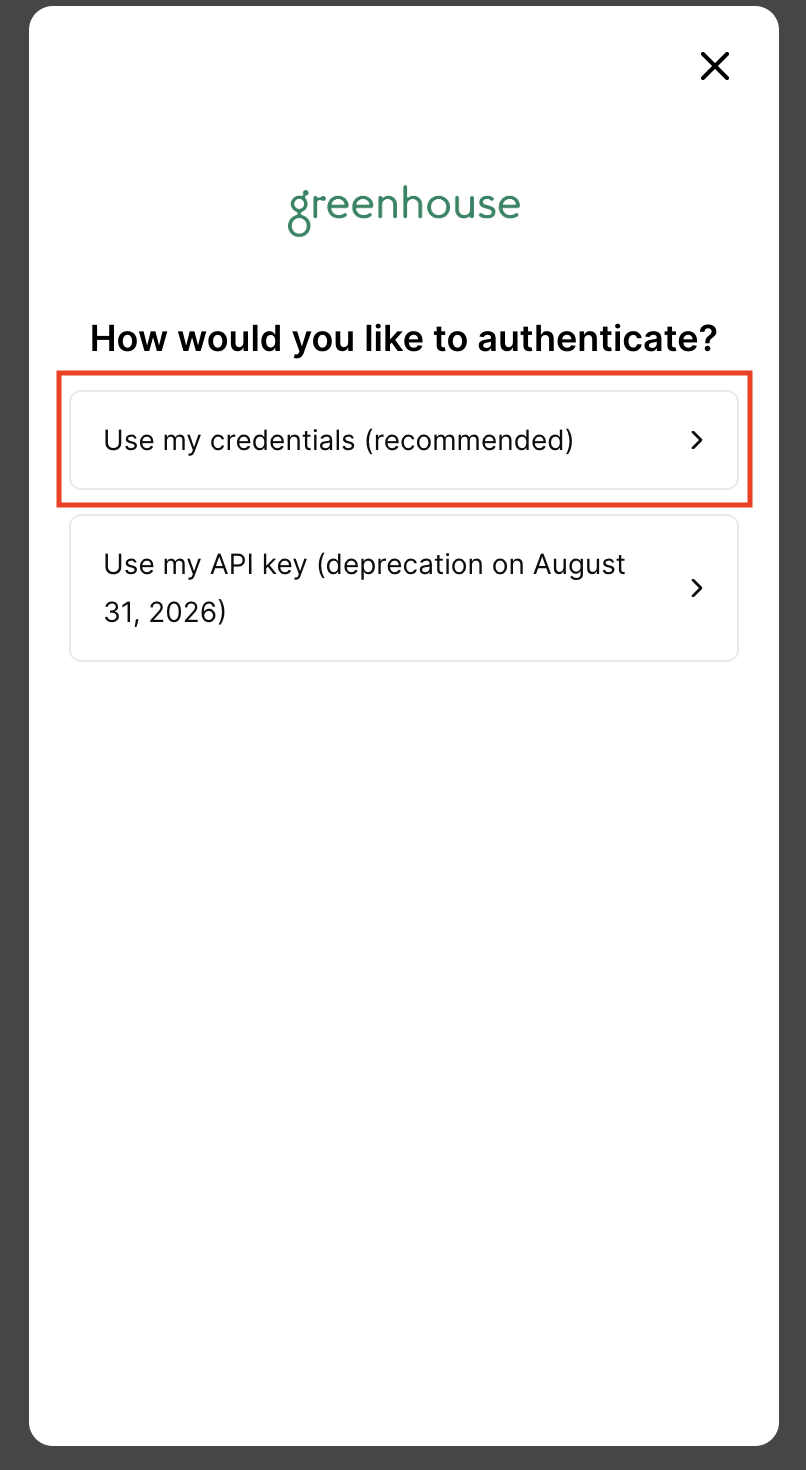
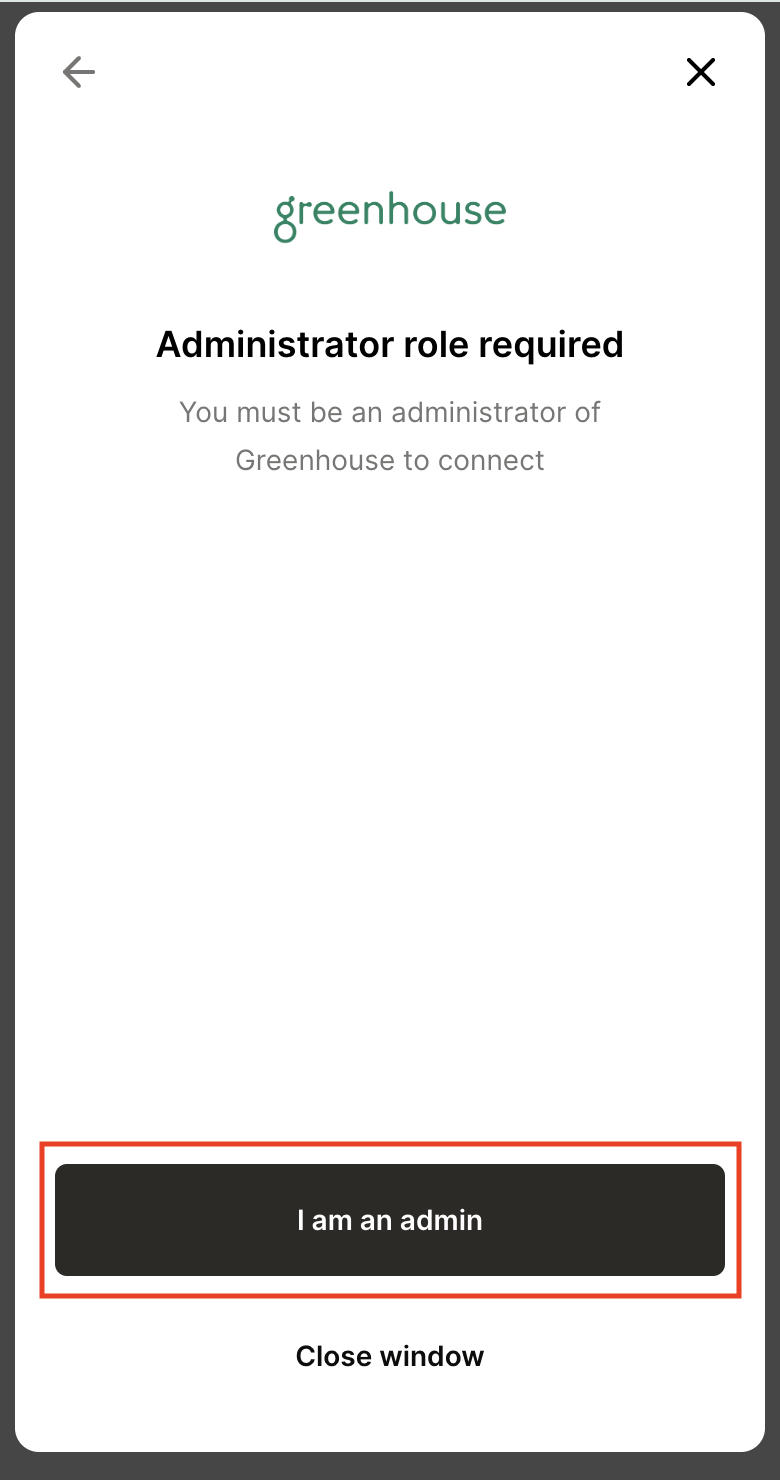
Click on I am an admin
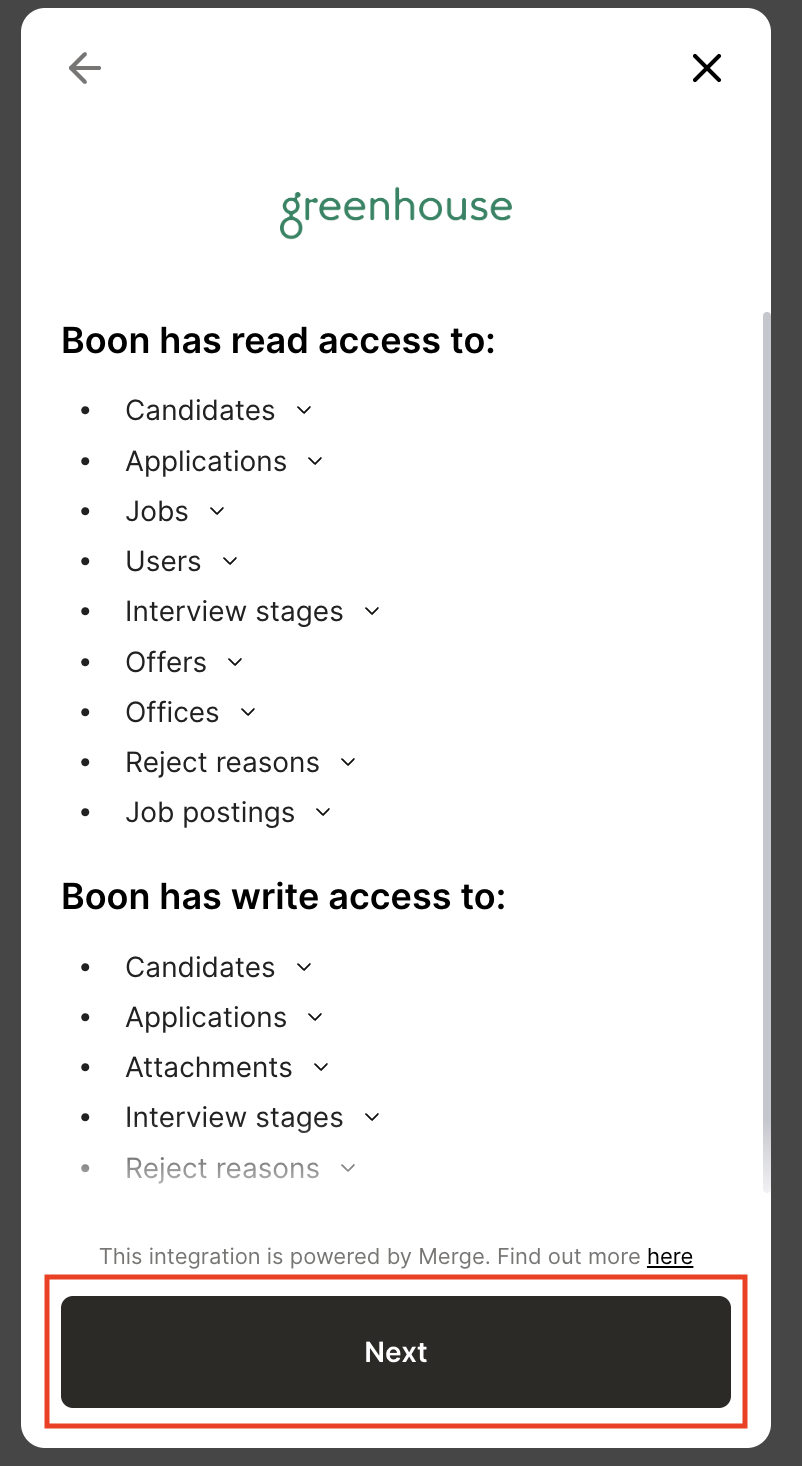
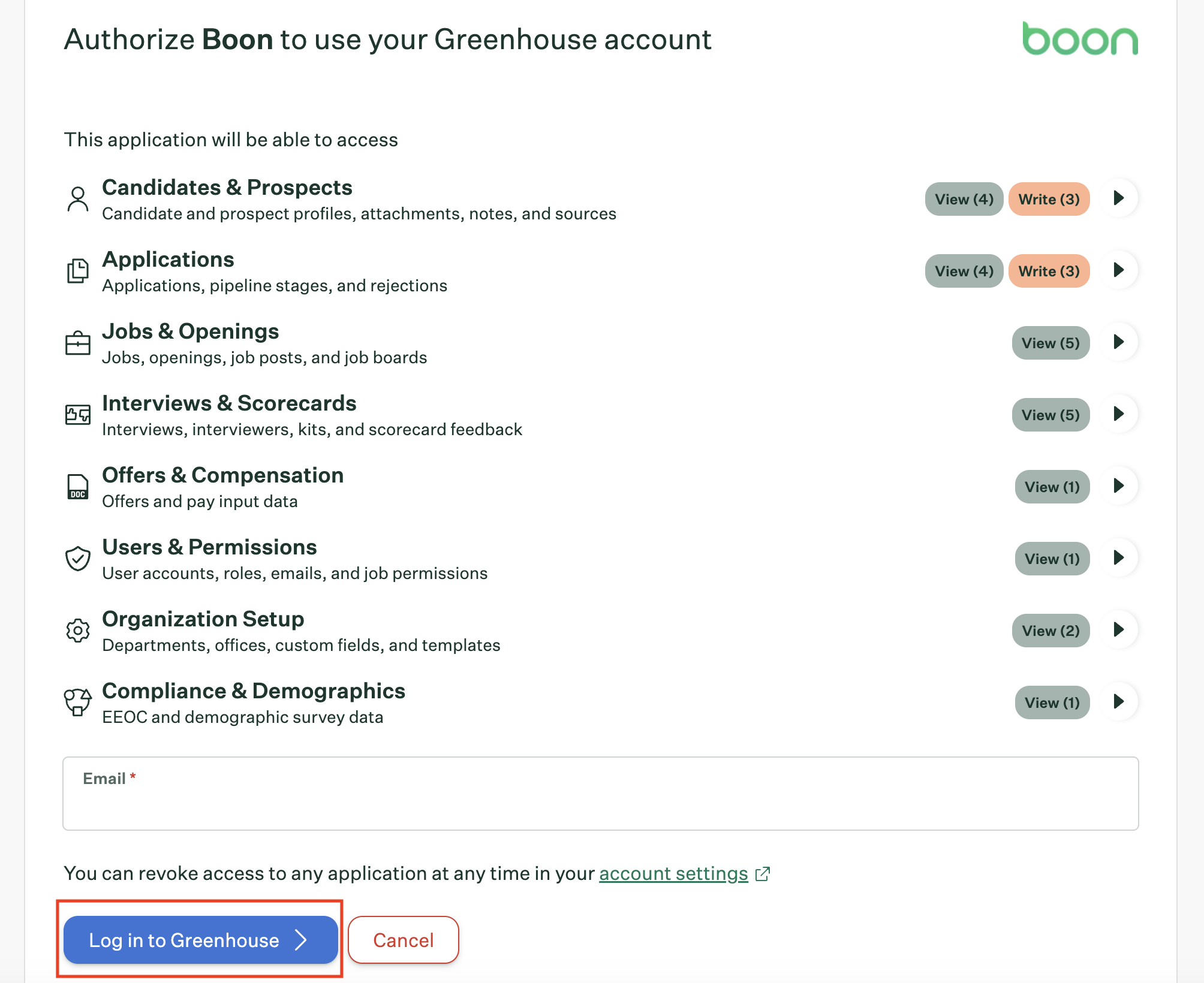
Once you read the list of permissions Boon has access to, click on Next:
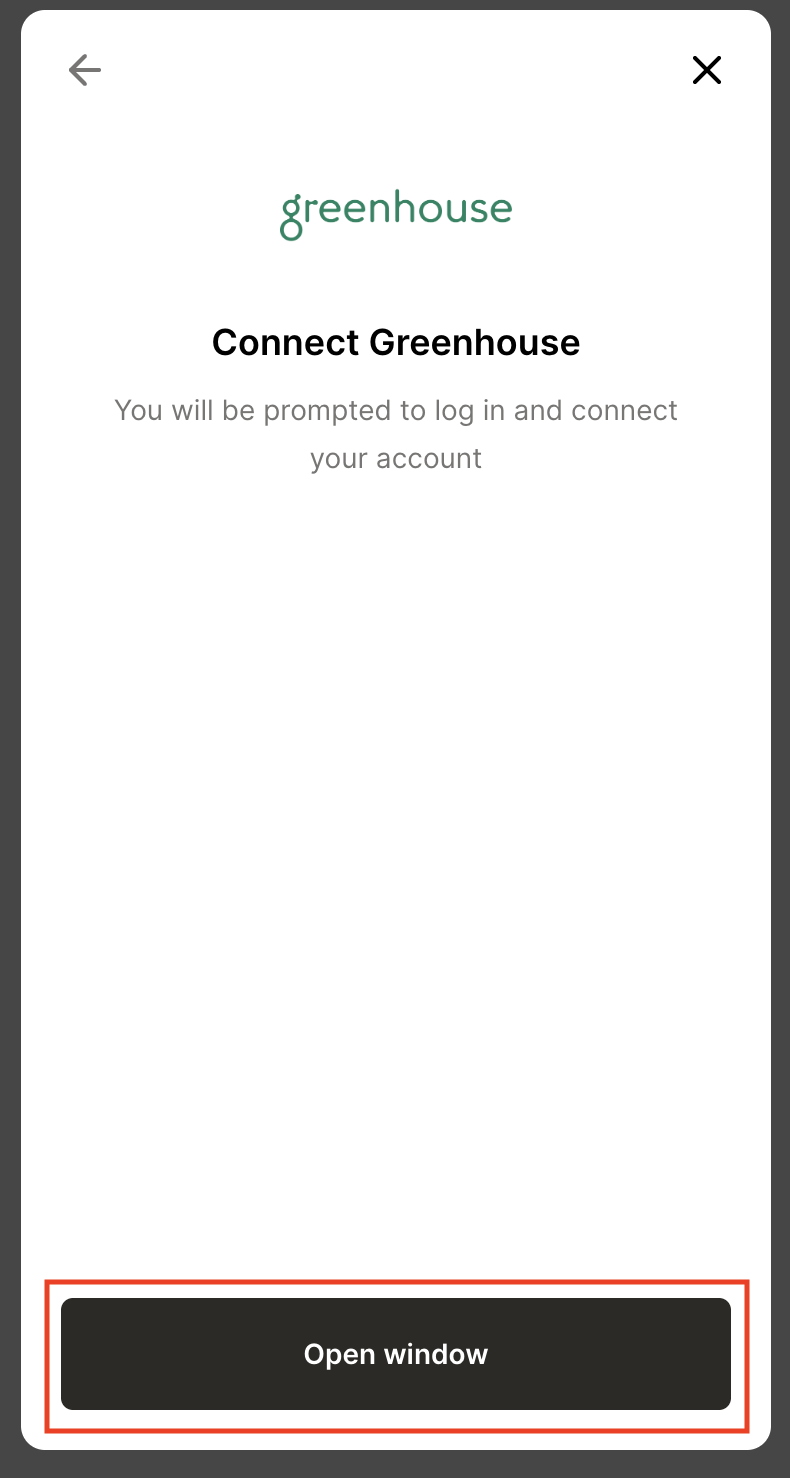
Click on Open window, this will redirect you to Greenhouse
Type in your Greenhouse email and click on Login to Greenhouse:
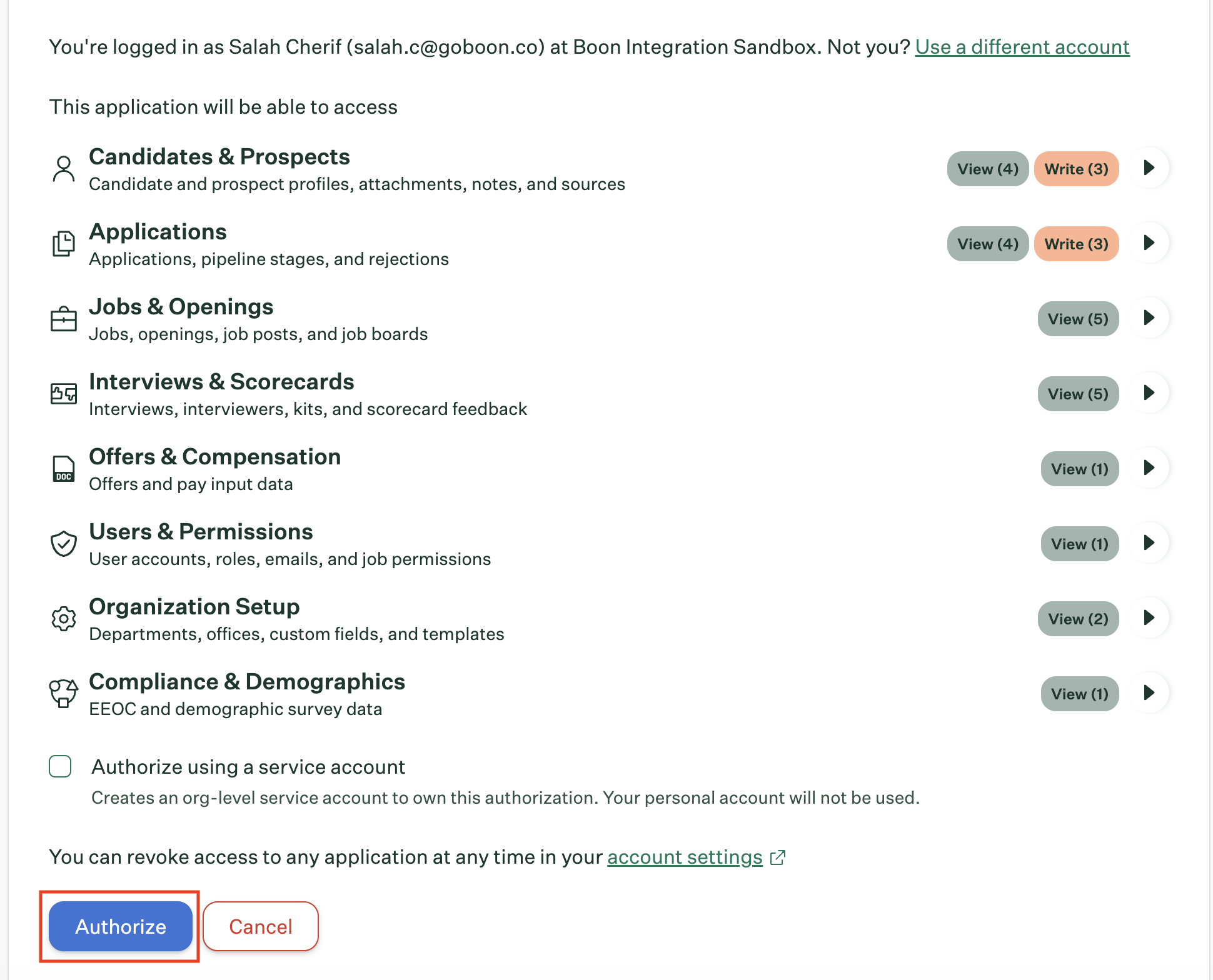
Click on Authorize:
Note: It is recommended to check "Authorize using a service account" when connecting Greenhouse. Without it, the integration is tied to the authorizing person's personal Greenhouse account, if they lose access or leave, the connection breaks. A service account keeps it org-owned and independent of any one person.
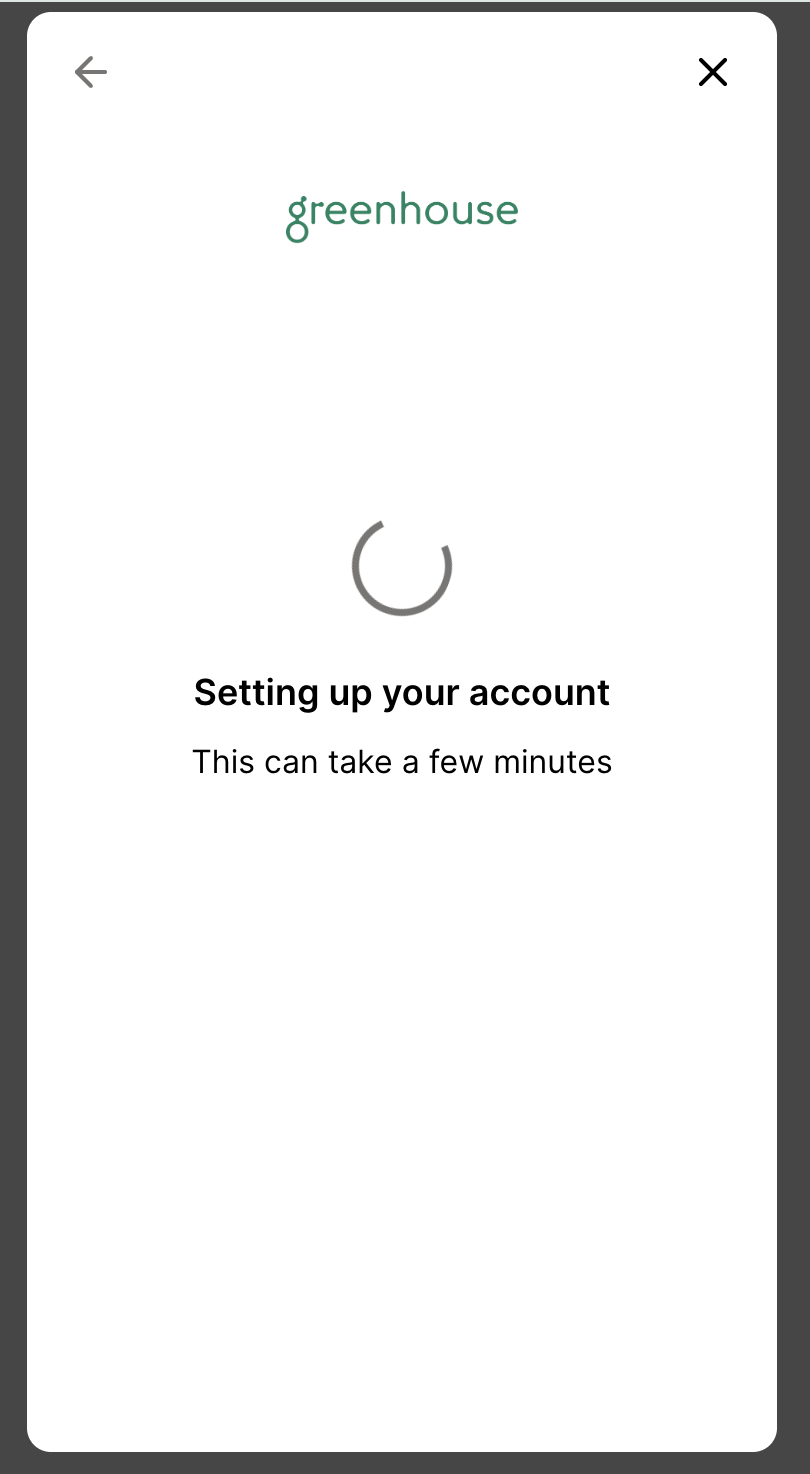
The account setup begins, this step can takes few minutes.
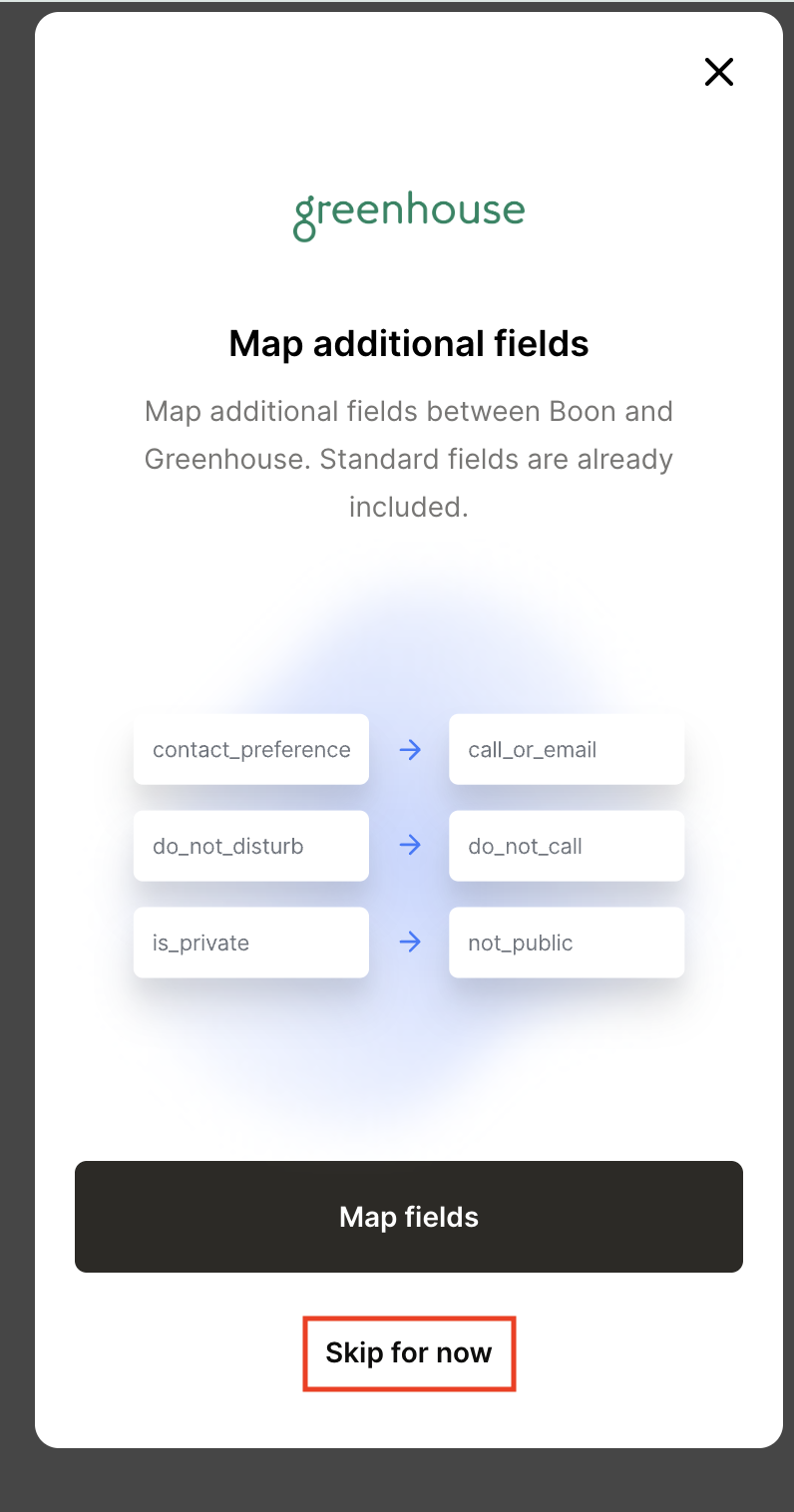
Click on Skip for now.
Note: If you organization has any custom fields that you want to be included, please inform your customer success and we will take care of it.
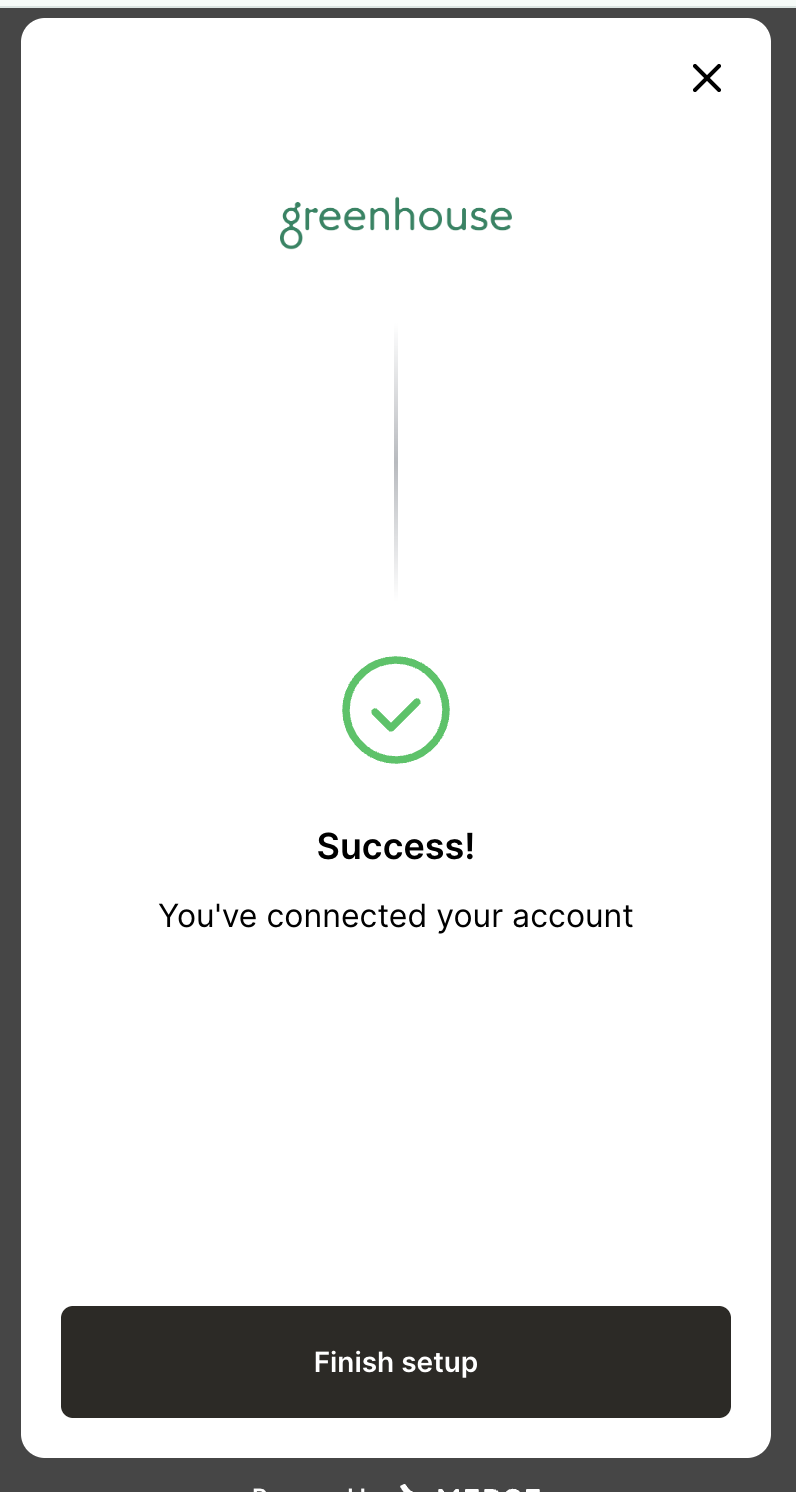
Setup is complete once you see this screen:
Once finished, please reach back to your Boon customer success to finish the onboarding process.