General Referral Widget Installation Guide
Last updated: April 3, 2026
To add the Boon Referral Widget to your website, you’ll place a small code snippet into your site’s custom code area or shared site template.
Most website platforms support adding third-party scripts either globally across the entire site or within a common header, footer, or body injection area. The ideal setup is to install the widget site-wide so it appears consistently across your website.
Get your widget code
In the Boon Admin App, go to Settings → Branding → Install Referral Widget and copy your referral widget code snippet.
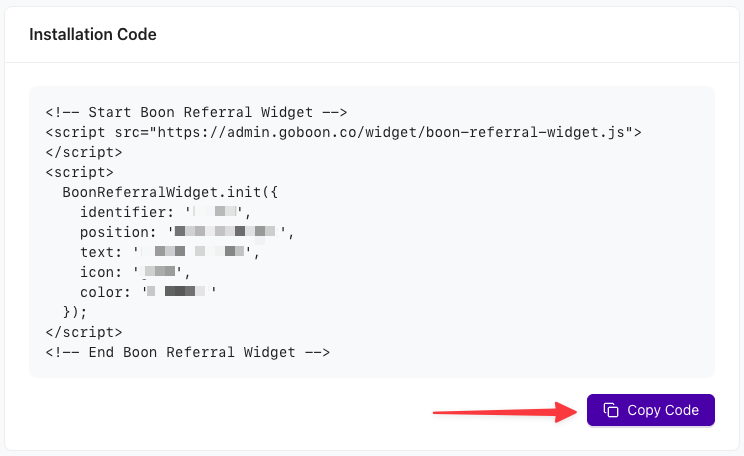
Where to add the code
Add the widget code in the area of your website platform that allows for custom scripts or embedded code.
This may be called something like:
Custom Code
Code Injection
Header/Footer Scripts
Site-Wide Scripts
Global Embed
Theme Template or Layout File
The best placement is typically in the body section of the site, ideally near the end of the body, unless your platform specifically instructs otherwise.
Recommended setup
When configuring the widget installation, use the following settings whenever your platform gives you these options:
Scope: Entire site
Placement: Body
Execution: Once
If your platform does not offer these exact settings, the goal is simply to install the script globally so it loads across your site.
Publish and test
After saving the code:
Publish or republish your site
Open the live version of the site
Confirm that the referral widget appears in the expected position
If you have a staging environment, it’s a good idea to test there first before publishing to production.
If the widget does not appear on all pages
Some websites use client-side navigation or single-page application behavior, which can affect how third-party widgets load between page transitions.
If the widget appears on the initial page load but disappears when navigating to other pages, the script may need to be configured to run on each page visit or route change, depending on your platform.
In that case, check whether your website platform offers an option to re-run scripts on navigation, or contact your developer or the Boon team for help configuring it correctly.
Notes
No code changes should be needed beyond copying and pasting the widget snippet from Boon
The widget should be installed globally rather than on a single page unless you have a specific reason not to
If your site uses strict security settings, firewall rules, or a content security policy, you may need to allow scripts from
admin.goboon.coIf your platform supports both head and body code injection, body is generally the better starting point for this widget
Need help?
If you’re unsure where your platform handles custom scripts, check your website builder’s documentation for site-wide custom code, code injection, or script embedding settings. If needed, your developer or webmaster should be able to install the widget in just a few minutes.