Framer Site Referral Widget Installation Guide
Last updated: April 7, 2026
To add the Boon Referral Widget to your Framer site, you’ll copy your widget code snippet from Boon and paste it into Framer’s custom code settings.
Get your widget code
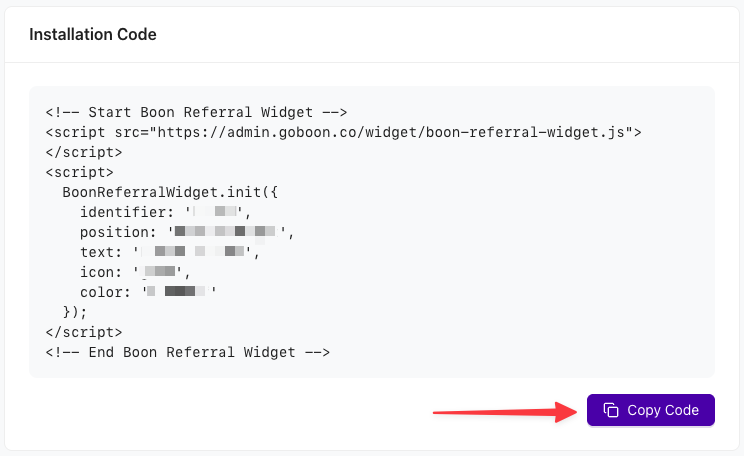
In the Boon Admin App, go to Settings → Branding → Install Referral Widget and copy your referral widget code snippet.
Where to add the code
In Framer:
Open your project
Go to Project Settings
Click Custom Code
Add a new custom code snippet
Apply it site-wide
Place it in the Body section, ideally near the end of the body
Set it to run Once
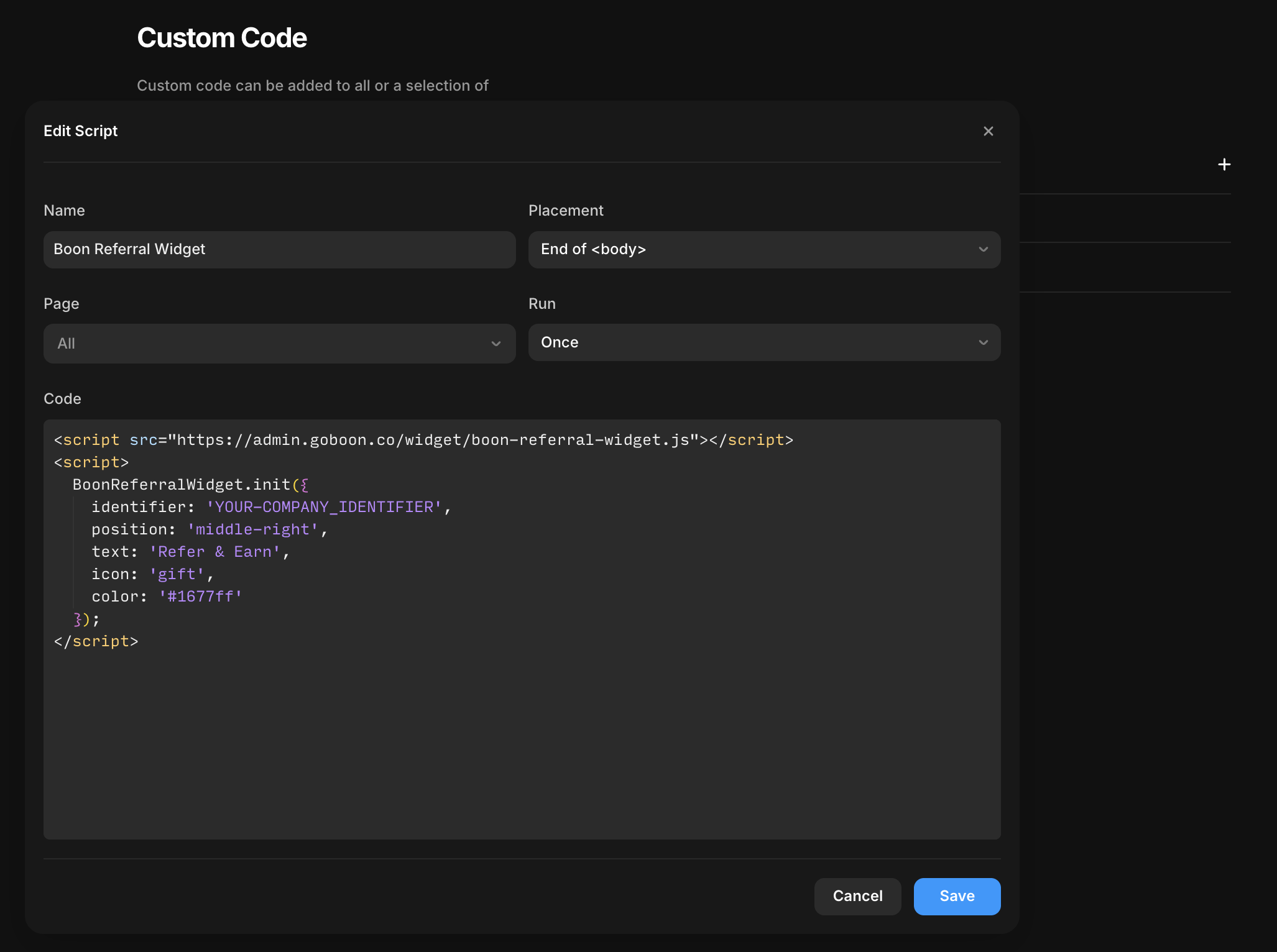
Framer’s Custom Code settings are designed for this kind of third-party widget install. While Framer also supports an On Every Page Visit option, Once is the best starting point for most widget scripts.
Recommended setup
Use these settings when adding the snippet:
Scope: Entire site
Placement: Body
Execution: Once
Publish and test
After saving the code:
Publish or republish the Framer site
Open the live site
Confirm the widget appears on the right side of the page
If the widget does not appear on all pages
Some Framer sites use client-side navigation, which can affect how third-party scripts behave between page transitions. If the widget appears on the first page load but disappears when moving between pages, change the execution setting from Once to On Every Page Visit in Framer. Framer added that option specifically for code that needs to run again during navigation.
Notes
No code changes should be needed beyond pasting the snippet above.
If your team uses a staging environment, it’s best to test there first before pushing live.
If there are strict script or security settings on the site, those may need to allow loading scripts from
admin.goboon.co.